
We are happy to have you as a tenant to our beautiful remodeled building. Below you will find important information guiding you to accessing the internet and how to create your own Wireless / WiFi network in your apartment. Alternatively, you are welcome to seek out your own internet provider through AT&T or Verizon cellular. (We do not support modification to the building to supply external ISP sources)
Choosing your WiFi Router
To start, you will need to purchase a personal router to create your own internal WiFi network.
You are welcome to use any router of your choice, however here are some recommendations on what we have tested here locally and recommend to use.
For single level apartments, we recommend a standard router.
The Netgear Nighthawk RS100 router can be found at your local Best Buy or on Amazon.
They recommend these for covering 2000 SQ Feet supporting WiFi 6 and 7.
For multi-level apartments, we recommend an extended router for each level.
The eero 7 Dual-band Mesh Wi-Fi 7 System (2-pack) router can be found at your local Best Buy or on Amazon.
They recommend these for covering 4000 SQ Feet supporting WiFi 6 and 7.
Setting Up the WiFi Network
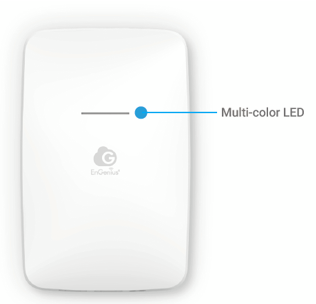
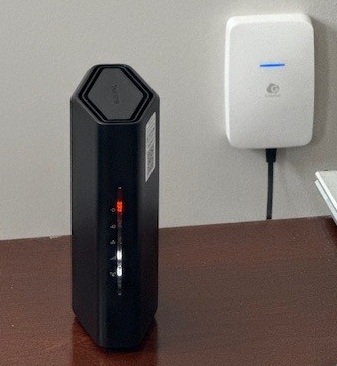
STEP 1: Please locate the Engenius Wall Mount AP in your unit. Verify that the light on this is SOLID BLUE.
If it is SOLID BLUE, you can move onto STEP 2.
If you see any other colors or it is blinking, email the support email at the bottom of this page, and let them know the current color of the light and if it is blinking or not. Please make sure to include your name and unit number.
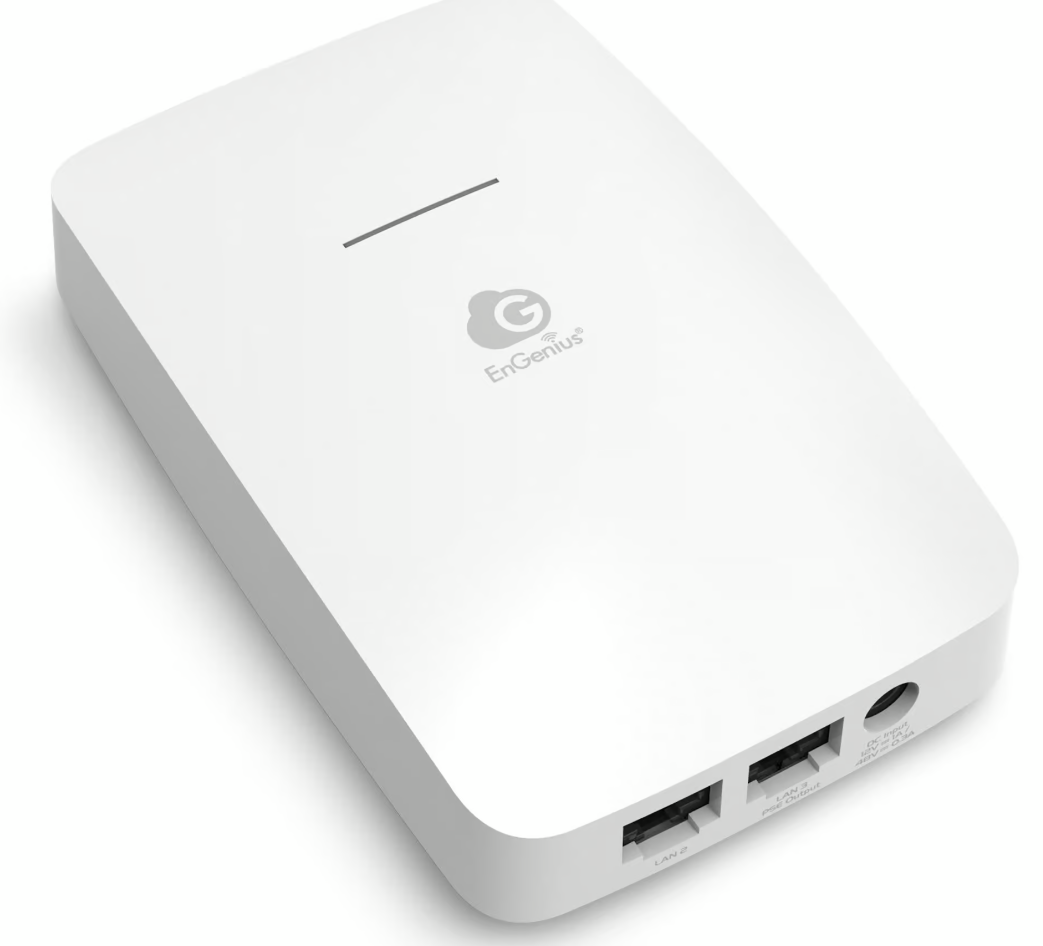
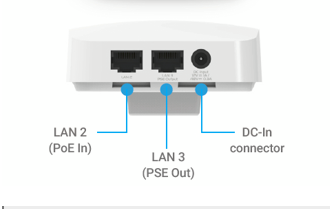
STEP 2: Unbox your purchased ROUTER. Plug the supplied ETHERNET cable into the INTERNET port on the router (typically this is yellow), and the other end will plug into the MIDDLE port underneath the EnGenius Wall AP. (LAN 3 / PSE Out)
 |  |
Typically orange lights on the power or a slow steady blinking light indicate that it has power, and booting up.
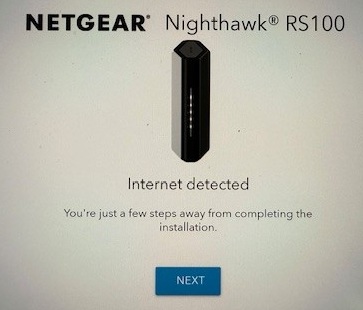
Once 5 minutes has passed, you should see a SOLID WHITE light on the power, and possibly some other lights blinking (depending on router type).
You will get a screen similar below. Follow directions on your APP or on your computer (depending on your setup preference) and once you click "FINISH" at the end, your WiFi will be set up and take you to the internet!
IMPORTANT: Please note, on the video below you can SKIP the items related to disconnecting from MODEM and REBOOTING modem, as you do not have one with your setup.
This free internet service provided is offered as a convenience to guests/residents. Use of this service is at your own risk. Carr Property Group, Blaine Apartments, and Managed IT Solutions, as well as their entities, makes no guarantees regarding network availability, speed, or security, and assumes no responsibility for data loss, corruption, or unauthorized access to personal devices. Users are responsible for their own online activity and are expected to comply with all applicable laws. By connecting to this network, you agree that Carr Property Group, Blaine Apartments, and Managed IT Solutions shall not be held liable for any damages, losses, or issues arising from its use.